Beside the session
Documents and Library
Read and write files beside the session that made them, ask about any file where you're looking at it, and find everything your agents ever wrote or were given in the Library.
The Documents tab
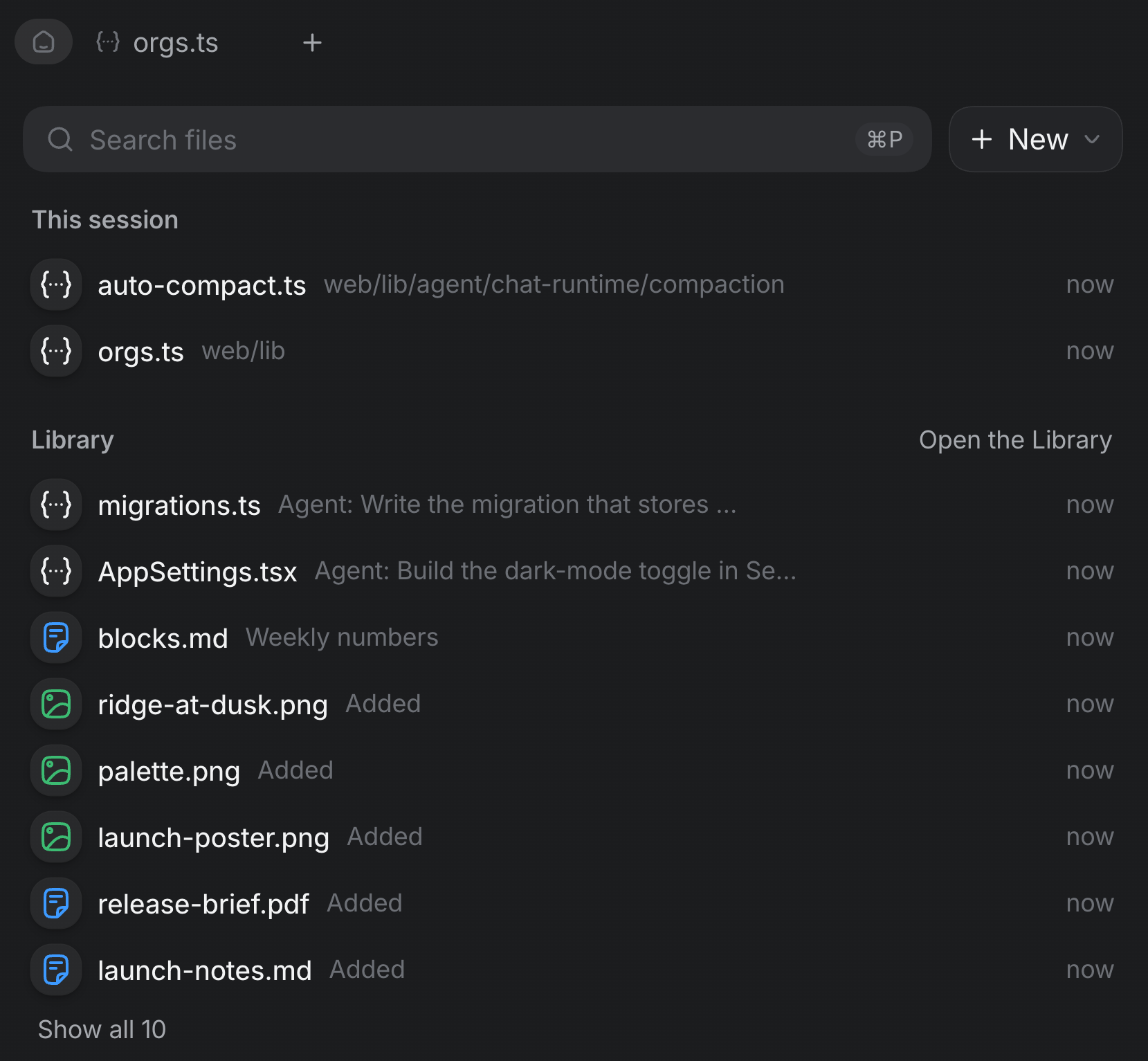
Open Documents from the side panel's +, or View ▸ Documents. With no file open it's a home for your files: what this session made and was given, then the Library's, under one search that also finds files in the session's checkout by name.
- ⌘P opens a file by name, from anywhere.
- ⌘⇧P searches inside files, in the palette.
- A file an answer names, such as
web/lib/orgs.ts (line 83), is a link once Realm has found it in the checkout, and opens beside the session at that line.
Make a new file
New makes one of these:
| Kind | What it is |
|---|---|
| Document | Markdown, written as rich text |
| Spreadsheet | A CSV in a grid, with formulas |
| Presentation | Slides, written in Markdown |
| LaTeX | A paper, in source |
| Study guide | A page with quizzes and step-throughs |
| Code file… | TypeScript, Python, Swift and more |
Editing
- A Markdown file opens as rich text, and Source shows the file as written. A CSV opens as a grid. Code opens in an editor with line numbers; long lines scroll sideways.
- There's no Save button: a pause in typing saves, and the head says Saving…, then Saved.
- If the file changes on disk while you're editing it, Realm asks which to keep: Keep mine or Take theirs.
- A file outside the space, such as one an agent wrote to
/tmpor your Downloads, opens read-only.
Looking at a file
Every file Realm shows outside the Documents tab (a picture in a message, an attachment, a Library tile) opens in the same viewer. Markdown is rendered and code is highlighted, PDFs open in a PDF viewer, and videos play in Realm's own player.
In a PDF, the arrows either side of the page number (Previous page and Next page) step one page at a time, on a slide deck too, and right to the last page. Type a number over the page number and press ↩ to go there, and Show pages ⌘⌥S lists the pages down the side.
Under the file is its session's prompter. A question asked there is a turn of the session the file came from, with the file attached, because that agent knows what the file is for. Marks you draw on a picture go to the agent as part of the picture.
| In the video player | Keys |
|---|---|
| Play and pause | Space or K |
| Back or forward 10 seconds | J and L |
| Back or forward 5 seconds | ← and → |
| One frame back or forward, while paused | , and . |
| Volume, mute, full screen | ↑ ↓, M, F |
The player also has speed, loop and picture in picture, and remembers where you stopped. For a format Chromium can't play, Realm offers a playable copy when ffmpeg is installed.
The Library
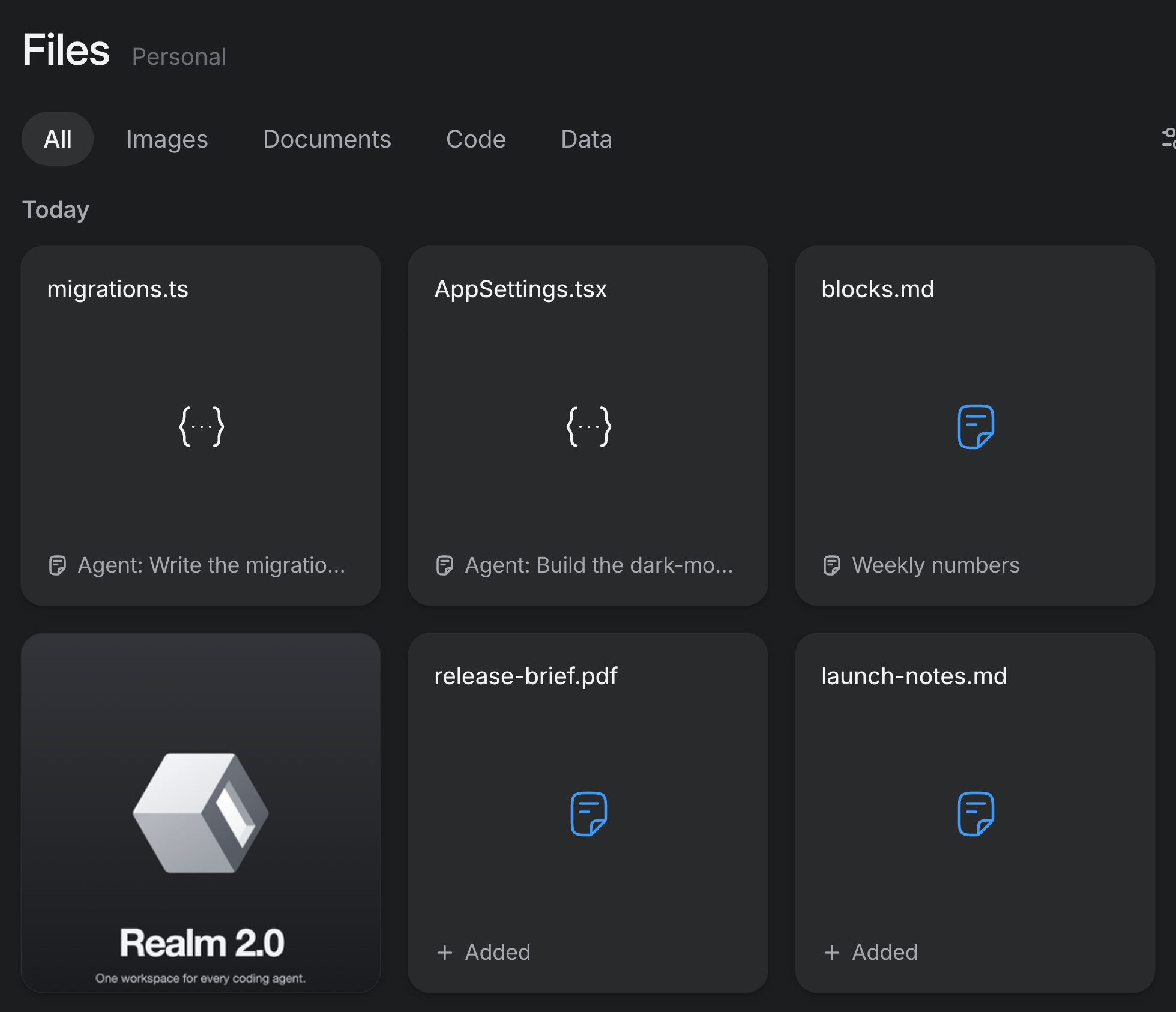
Library on the rail holds everything your agents made and everything you gave them, across every space in the profile. It has four sections:
| Section | What's in it |
|---|---|
| Files | Every file a session wrote or was given. Tabs narrow it by kind (All, Images, Documents, Code, Data), and the filter narrows it by space or by who made it. |
| Saved | The turns you saved from a session's track (see Sessions) |
| Skills | The skills your agents can use. See Connections and skills. |
| Memory | The memory documents your agents read, and exactly which files each agent loads |
- Add puts files from your Mac in the Library, or drop them on the page. Realm keeps its own copy of each, in
~/Realm/library/. - Removing a file from the Library takes away Realm's copy, never the original, and the notice that follows has Undo.
- Switch between tiles and rows with the view buttons beside the search.
Memory
Memory is what your agents read before they start. A space's memory document (its page's Memory tab) is read by every session in that space; write conventions, links and standing instructions there, anything you'd otherwise retype at the start of every session. No agent edits it; only an import you run adds to it.
Library ▸ Memory shows the memory at each level (the space, the profile) and, session by session, the exact files each agent loads. Also write AGENTS.md puts the space's memory into an AGENTS.md in its folder, for agents that read that file.