Start here
Getting started
Install Realm, sign in to the agent you already use, and open your first space.
Realm is a desktop app that gives coding agents a place to work, on a Mac, with previews for Windows and Linux. You bring the agent, Claude Code, Codex, Cursor or one of the others, signed in with your own account. Realm gives it a session to talk in, the folder it works in, and the browser, terminals and documents around it.
What you need
- A Mac with Apple silicon, or a Windows or Linux PC on x64 for the previews. The Mac build is made for Apple silicon only.
- An account with the agent you want to use, such as a Claude or ChatGPT plan.
- For agents other than Claude, their own installer's requirements. Claude comes with Realm; Codex and most others install from npm, so they need Node.js. Settings ▸ Engines names each one's command.
Install Realm
- Download the disk image from the latest release, or with the download button at the top of this site, which offers the build for the system you're on.
- Open the
.dmgand drag Realm into Applications. - Open Realm from Applications. Releases are signed and notarized by Apple, so it opens like any other app.
On Windows, run Realm-Setup-<version>.exe from the same release. The installer isn't signed yet, so SmartScreen may stop it; choose More info, then Run anyway. On Linux, make the .AppImage executable (chmod +x) and run it, or install the .deb with sudo apt install ./realm_<version>_amd64.deb.
On a Mac, Realm checks for a new version when it opens and every few hours while it runs, and downloads it in the background. When one is ready, a button at the foot of the rail restarts Realm into it, and your agents keep working through the restart. You can check by hand in Settings ▸ General, under Updates, with Check for updates. On Windows and Linux, install a new version from the releases page.
Choose your agent
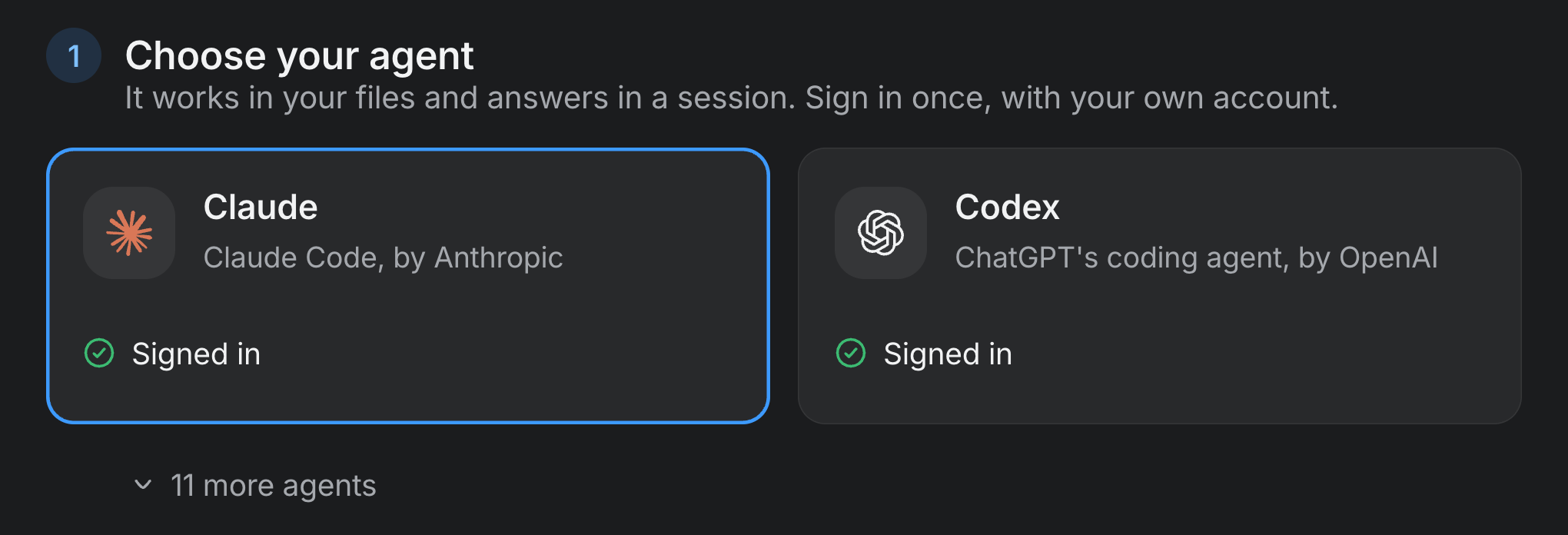
Realm opens on one page, Welcome to Realm. Its first step, Choose your agent, has a card for Claude and one for Codex, and each card does whatever its state needs, in place:
- Install Codex when Codex isn't installed yet. Claude needs no install: Realm carries the copy its sessions run.
- Sign in with Claude or Sign in with ChatGPT when it's installed but signed out. Your browser opens the provider's sign-in page. If that page shows you a code, paste it into the field on the card and press Continue.
- Signed in or Ready once it can run. Pick the card you want your first session to use.
Eleven more agents are folded under 11 more agents: Cursor, Gemini, OpenCode, GitHub Copilot, goose, Qwen Code, Grok, fx, DeepSeek, OpenHands and Hermes. Each of them installs and signs in from its first session, or from Settings ▸ Engines.
Name your first space
The second step, Name your space, makes your first space. A space keeps one project's sessions, files and memory together.
- Type a Name. The tile beside it and the swatches under it set the space's icon and colour.
- Under Folder, press Choose folder… or drop a repository onto it. The folder is optional: without one, the page shows the folder Realm will make for the space under
~/Realm, and sessions run there. - Press Start, or ↩.
Realm opens the space on a new session with the keyboard in the prompter, so the next thing to do is type. Spaces and worktrees covers adding more spaces, and Sessions and the prompter covers what you can do from that box.
Find your way around
- The rail runs down the window's left edge: Home, then Library, Connections, Scheduled tasks and Code review. Your profile and Settings are at its foot. Home always takes you back to the session you were in.
- The sidebar lists Needs you first, which is every session waiting on you, then each space with its sessions. ⌘B hides it.
- A session fills the middle: the transcript, and the prompter under it.
- The side panel is a column of tabs on the right for what the session works with: documents, a terminal, a web page, its sub-agents, a simulator. The button at the window's top right shows and hides it.
Sign in to more agents
Settings ▸ Engines lists every agent Realm can run, each on a card that says whether it's Ready, Signed out or Not installed. A card can install or update its agent, and its details hold the sign-in command with a copy button, to run in a terminal yourself.
You can also fix an agent where you notice it: when a session's agent can't run, a card takes the prompter's place with Install or Sign in, Open in terminal and Check again. Sign in runs the agent's own sign-in and opens its page beside the session.
| Agent | Signs in with |
|---|---|
| Claude | claude auth login |
| Codex | codex login |
| Cursor | cursor-agent login |
| Gemini | An API key, Vertex or a gateway, set up in Gemini's own configuration |
| OpenCode | opencode auth login |
| GitHub Copilot | copilot login |
| goose | goose configure |
| Qwen Code | qwen |
| Grok | grok login |
| fx | fx login |
| DeepSeek | The DEEPSEEK_API_KEY environment variable |
| OpenHands | openhands, then its /settings |
| Hermes | hermes model |
Closing the window
Closing Realm's window, or ⌘Q, puts the window away and leaves your agents working. Realm stays in the menu bar, saying what's still running, and its menu has Open Realm, Stop all agents and Quit Realm & stop agents. Only the last one stops everything, and it asks first if a session is still working.