Work with agents
Sessions and the prompter
A session is one conversation with one agent. The prompter under it is where you pick the model, the effort and the mode, attach files, set a goal, and line up what to say next.
On this page
- Start a session
- Send a message
- Over the prompter
- Pick the model
- Modes: Build, Plan and Ask
- Add files, folders and more
- Add a teammate
- Slash commands
- Goals
- Messages typed while the agent works
- Stop a turn
- Undo what a turn changed
- Find your place in a long session
- Under each answer
- When the agent asks you something
- Share a session
- Session details
Start a session
A new session opens in a space, with the keyboard already in its prompter. It uses the agent and model you last sent with, the space's folder, and the permission mode new sessions start in.
| To | Do this |
|---|---|
| Start a session in the space you're in | ⌘N, or New session at the top of the sidebar |
| Start one in another space | The + on that space's header in the sidebar (New session here) |
| Start one beside this one | ⌘\ splits right with a new session, ⌘⇧\ splits down |
| Send this draft to a fresh session instead | ⌘⇧↩ (Dispatch the draft): same agent, model, effort and mode, opened beside you |
| Ask something without changing your layout | ⌘⇧N (Quick chat): a session in a small window over whatever is on screen. It isn't listed anywhere, and closing it deletes the chat. |
A session is titled from the first line of your first message, then given a short summary title. Its agent and its checkout can be changed until that message is sent, and not after: the conversation lives inside that agent and that folder from then on.

Send a message
- ↩ sends and ⇧↩ starts a new line. If you'd rather send with ⌘↩, change Settings ▸ General ▸ Send message with. ⌘↩ always sends.
- When the prompter shows a suggestion in grey with a Tab key beside it, Tab fills it in.
- ⌘⇧8 starts a bulleted list and ⌘⇧7 a numbered one. Tab and ⇧Tab indent inside a list.
- Select text in the transcript and press Quote to put it in the prompter as a quote.
- If a message can't be sent, it comes back to the prompter as you wrote it, unless you've started typing something new.
Over the prompter
Agents at work
While other agents work in the session, a row over the prompter shows each one: the sub-agents its agent started, the teammates you added, and any agent it asked a question. Each wears its own agent's mark with its state on the corner, a dot while it works and a check once it's done, beside its name. Whoever needs you comes first, and past three the last place reads +N and lists the rest. Finished ones stay until your next message. Point at one for its model, its state and its task.
Click one to open it in the side panel's Agents tab. Right-click it for Open in Agents tab and Dismiss, which takes it off the row and leaves it working; a sub-agent started through Realm, teammates included, also has Message, which names it in the prompter, and Stop while it works. See Sub-agents.
What changed
Once the session's checkout has changes, a pill over the prompter says what they are in plain words, such as Changed 3 files, Added 2 images or Deleted 1 document, with a mark for each kind of file. Click it to review them in Changes in the side panel: pictures before and after, documents rendered, code as diffs, with the branch and the line counts at the head. See Code review.
Pick the model
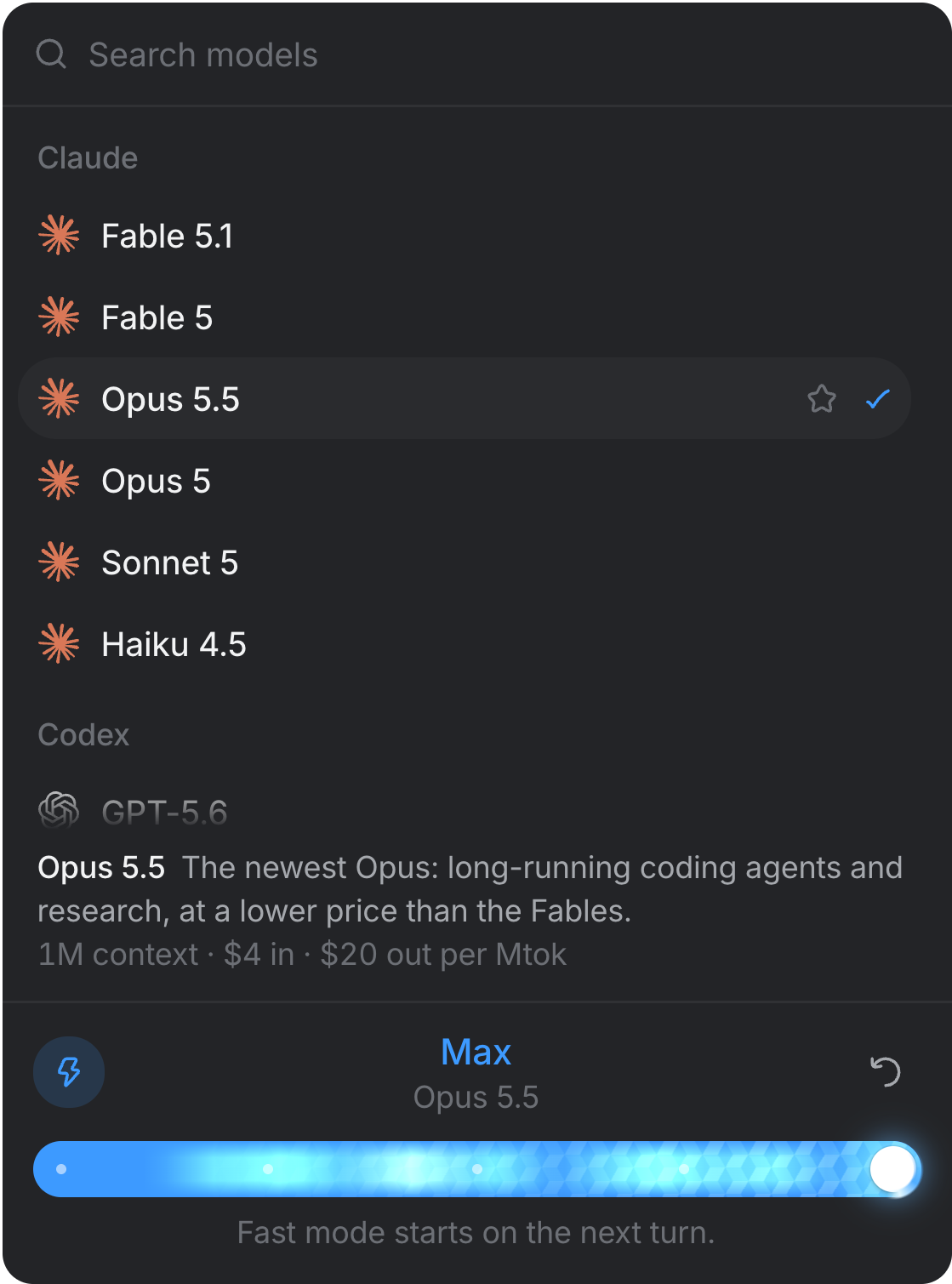
The chip at the right of the prompter names the model, its effort level in grey, and a bolt when fast mode is on. Click it to open the picker:
- Models are grouped by the agent that runs them, your own agent first, with Favourites above them all. Agents that only offer a default model, or aren't installed, fold into Other agents.
- Type to search every model at once. ↑ and ↓ move, ↩ picks, ⌥↩ stars a model as a favourite, and ⌘1 to ⌘9 pick a favourite directly.
- A model more than one agent can run is listed once. With it highlighted, ← and → choose which agent runs it.
- Picking a model leaves the picker open, so you can set the effort in the same visit. Esc, a click outside or the chip closes it.
Once a session has sent its first message, the picker only offers the models of the agent it's running on: the conversation can't move to another agent. To carry work across, use Implement with other models under an answer, or start a sub-agent on the other model.
Effort and fast mode
The card at the foot of the picker sets how hard the model works. Its track has one dot per level the model offers, from Low through Medium, High and XHigh to Max, and only the levels that model actually supports. Drag it, or use the arrow keys. Until you move it the chip shows the model's own default, and Reset effort appears once you have.
The bolt turns on fast mode: faster responses at a higher cost. It's offered for Claude and Codex models that support it, and starts on the next turn.
Modes: Build, Plan and Ask
| Mode | What the agent does |
|---|---|
| Build | Edit files and run commands. This is the usual mode. |
| Plan | Propose an approach, change nothing |
| Ask | Answer questions, change nothing |
Switch mode from the + menu's Mode section, or type /build, /plan or /ask at the start of a message. Claude and Codex always offer all three. Other agents offer Plan and Ask only where the agent itself has them, as Cursor does.
When a plan is ready, a card asks Ready to build this? with Implement this plan and Keep planning. Implementing switches the session back to Build. Plan and Ask set your permission chip aside while they run, and Build gets it back.
Add files, folders and more
The + at the left of the prompter has three sections.
| Row | What it does |
|---|---|
| Files… ⌘U | Attach files to this message |
| Folder… | Attach a folder to this message |
| Select in Realm ⌘⇧C | Point at any part of Realm's window, and attach a picture of it |
| Skills | Turn a skill on for this space, or mention it |
| Goal… | Keep working toward an objective across turns |
| Add teammate… | Another agent, to help this one. See Add a teammate. |
| Mode | Build, Plan or Ask |
| Connectors | Each connection enabled in this space and its state, and Manage connections… |
Attachments
- Drop files anywhere on the session, paste them, or use Files…. A pasted picture with no file behind it is saved for you.
- Each file can be up to 20 MB. Attached files and folders sit in a tray inside the prompter as cards; pictures stay thumbnails.
- What the agent receives depends on the agent: Claude reads pictures inline and opens other files from their path; Codex gets a path for everything; other agents get a link to the file and open it themselves. The tooltip on each card says which.
- Paste a single link to Slack, Notion, Linear, GitHub, Jira, Figma, Sentry or X and, where Realm can name what it points at, it becomes a chip with that name. The agent is sent the link itself.
- Drag a session from the sidebar onto the prompter to point this message at that session, up to eight of them.
Mention with @
Type @ to name something. On its own it shows a short tour under In this session, Team, Files, Library, Skills and Apps; keep typing and it becomes one ranked list. ↩ or Tab picks.
- A file in the checkout or the Library is handed over the way an attached file is.
- A skill is mentioned by name for this message.
- An app on your Mac gives this session computer use for that app alone. Its first action still asks you. See Computer use and Laya.
- An agent in this session, a sub-agent or a teammate you added, gets the message too, once it finishes what it's doing.
- A role of the space's team, in a space with one, starts as a sub-agent of this session.
@ list, such as .env, id_rsa, *.pem or anything under ~/.ssh, ~/.aws or ~/.gnupg, and holds them back if you name one anyway.Add a teammate
Add teammate… in the + menu brings another agent into the session to help its own. A small card asks for:
- Runs on: any model of any agent you have installed, in the same picker as the prompter's. It starts on this session's own.
- A brief, in the Help with… field, which can be left empty.
- Works in: This folder or Its own worktree, when the session's folder is a git checkout.
Add teammate starts it. The session's agent is told it joined along with your next message, and gets its report when it's done. A teammate is a sub-agent that you started instead of the session's agent, so it has a sub-agent's limits and runs in the session's permission mode. It shows on the row over the prompter, @ sends it a message, and stopping your turn leaves it running. A sub-agent's own session doesn't offer it.
Slash commands
Type / at the very start of a message to see the commands. They run in Realm, not in the agent, and any words after the command stay in the prompter: /plan look at the parser switches to Plan and leaves "look at the parser" ready to send.
| Command | What it does |
|---|---|
/build, /plan, /ask | Switch mode, where the agent offers that mode |
/goal <objective> | Set a goal for the session |
/export | Save this transcript as Markdown |
/share | Save this session as one web page. See Share a session. |
/diff | Open Changes for this session's checkout |
/attach | Attach files to this message |
/skills | Open this space's skills |
/connections | Open this space's connections |
Your own commands
A command of your own is a Markdown file whose name is the command. Realm reads them from the space's folder under commands/, from ~/Realm/commands, and from ~/.claude/commands, in that order, and the first to define a name wins. Its frontmatter gives the line the picker shows:
---
description: Write release notes for the last tag
argument-hint: <version>
---
Write release notes for $1 from the merged pull requests since the previous tag.
$ARGUMENTS is everything typed after the command, and $1 to $9 are its words. The result goes into the prompter for you to read before you send it.
Goals
A goal keeps the session working toward an objective across turns: each time a turn ends while the goal is active, the next one starts by itself. Type /goal and the objective, or choose Goal… in the + menu. The objective is also the first turn's prompt.
A strip above the prompter shows the goal's state (Pursuing, Paused, Blocked, Budget spent, Done or Dropped) and its progress, with Mark done, Pause, Resume and Drop. Dropping forgets the objective, not the work.
A goal stops itself after three turns in a row with no progress, after three errors in a row, when the agent reports it complete or blocked, or, when it has no budget, after 200 turns. The agent can report on the goal but can't change it.
Messages typed while the agent works
What happens to a message you send mid-turn is Settings ▸ General ▸ A message typed while a turn is running:
- Waits its turn, the default, puts it in a tray above the prompter and sends it when the turn ends, one per turn.
- Sends now delivers it at once. Codex takes it into the turn it's running. Every other agent has its turn stopped to take it, which aborts the tool call in flight and denies any permission request that was waiting.
In the tray each queued message has Edit, Send now and a remove button. With two or more you can drag them into another order, or move one with ⌥↑ and ⌥↓. The queue is held in memory, so quitting Realm entirely clears it.
Stop a turn
While the agent works, the send button becomes Stop. Esc stops it too. After a stop, queued messages stay in the tray until you send them, and a goal doesn't carry on by itself. Sub-agents the agent started are stopped with the turn; teammates you added keep working.
Undo what a turn changed
In a git checkout, Realm takes a checkpoint before every message and keeps the newest fifty for each checkout. A turn that changed files ends with a card that says what changed, such as Changed 2 code files, and lists them: Review opens that turn's changes, and Undo puts the files back as they were before the turn. Undo appears only when it would take back exactly that turn and nothing after it.
- Right-click the session in the sidebar and choose Checkpoints…. (History in Changes opens the same list.)
- Pick a checkpoint and press Restore. Realm says what it will rewrite, and saves the checkout as it is now first, as an undo point, so nothing is lost.
- For a Claude session the conversation rewinds with the files. Other agents keep their memory of the later turns.
A checkpoint's Fork… starts a new session, on the same agent or another, in a new worktree restored to that point, carrying the transcript so far as text.
Find your place in a long session
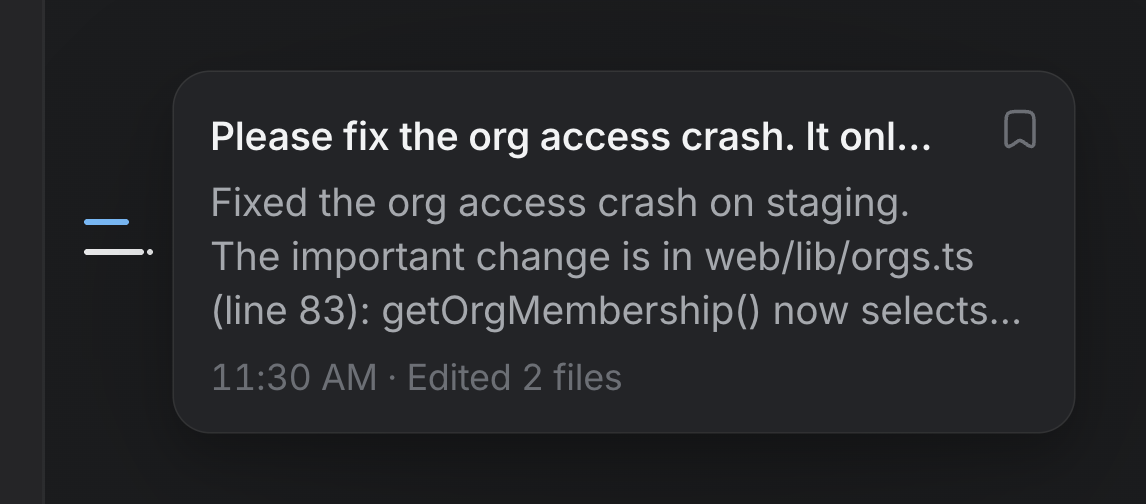
Once a session has two prompts, a tick for each runs down the transcript's left edge. Point at one to see its prompt and how the answer began; click it to go there. A dot marks turns that edited files.
The bookmark on that card saves the turn, and so does S while the track has the keyboard. ⌥↑ and ⌥↓ jump between saved turns, and Library ▸ Saved lists every turn you've saved.
Under each answer
- Copy message.
- Retry asks your last message again, as a new turn.
- Implement with other models hands the work to sub-agents on models you pick.
- Good response and Bad response.
When the agent asks you something
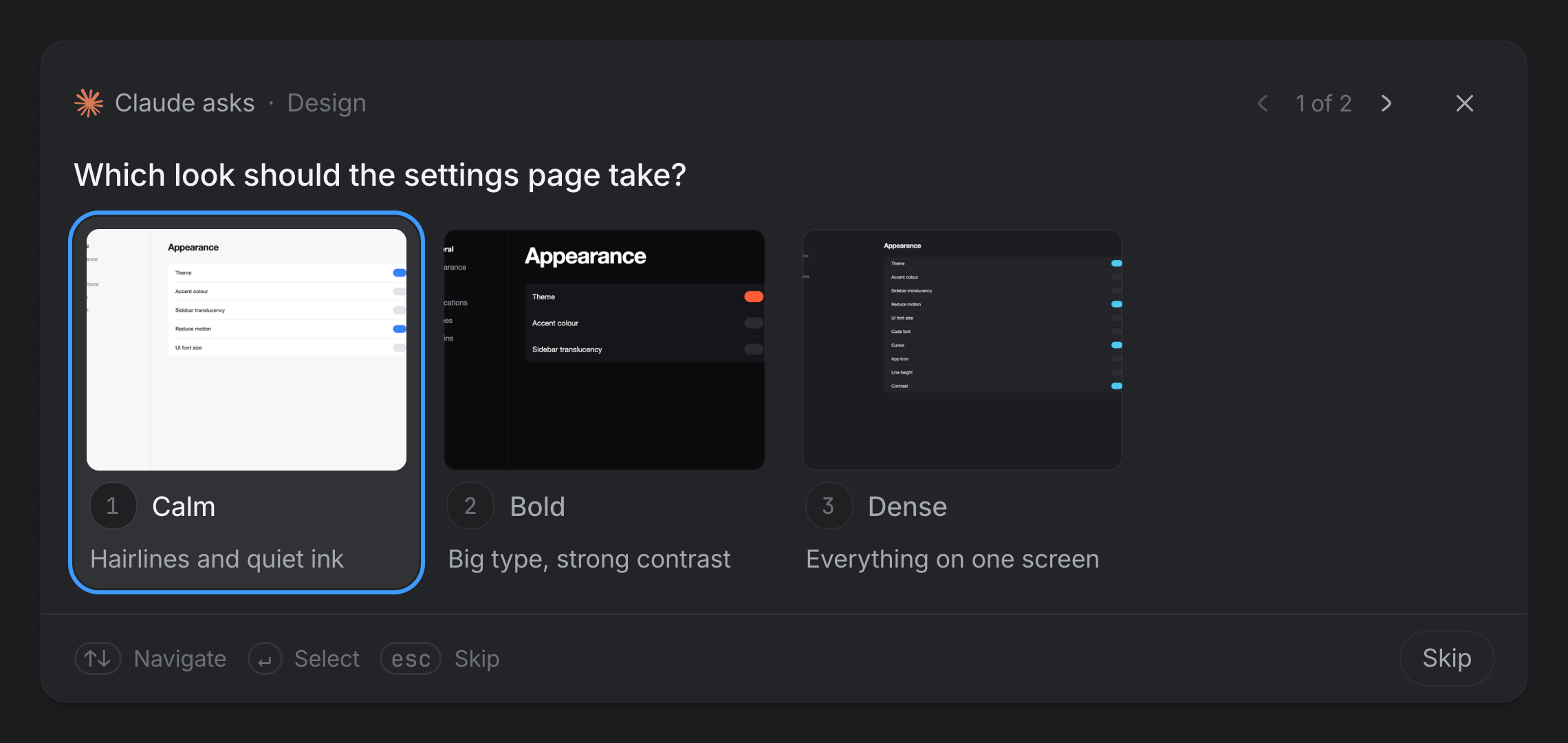
An agent's question arrives as a card in the transcript that says who is asking, such as Claude asks or Linear's MCP server asks. Choose with the number keys or the arrows and ↩; Esc skips. Once answered, the card stays where it was asked with your answer. Permission requests look similar and are covered in Permissions and Full access.
Share a session
⋯ ▸ Share as web page… in the session's bar, or /share, saves the session as one HTML file that opens in any browser and reads well on a phone or a desktop, in light or dark. It fetches nothing, and nothing leaves your computer until you send it.
- Tool details, Thinking, Pictures and Sub-agents choose what goes in, where the session has them. Thinking starts off and the others on.
- Hide file paths, on by default, writes your home folder as
~, so your account name stays out. - A value that looks like a key or a token always shows as
[hidden], whatever you choose. - Pictures go inside the file, up to 1.5 MB each and 12 MB in all. Larger ones are named instead.
Save… asks where, starting in Downloads, and names the file after the session and the day.
Session details
- The status dot in the session's bar says whether it's idle, running, waiting on you, or stopped with an error.
- Summary and files in the bar opens a panel with a recap of the session, its usage and context, and every file it made or was given.
/exportsaves the whole transcript as Markdown, and Share as web page… as a page anyone can open.- A session you haven't seen since it last changed has a bold title and a blue dot in the sidebar.