Work with agents
Spaces and worktrees
A space is one project: its folder, its sessions, its memory and its connections. Worktrees give a session a checkout of its own, so agents working at once don't edit the same files.
What a space holds
Every space has a folder its sessions run in: a repository you chose, or one Realm made for it under ~/Realm. Around that folder the space keeps its sessions, a memory document its agents read, the skills and connections they can use, and the scripts you run there.
A space's page has a tab for each. Open it from the space's menu with Space settings, or find the space in the palette with ⌘K.
| Tab | What's on it |
|---|---|
| General | Name, icon, colour, the profile it belongs to, and Delete space… |
| Memory | A document every session in the space reads before it starts. It's yours: no model writes to it. |
| Skills | Which skills this space's agents get. See Connections and skills. |
| Connections | The apps and MCP servers this space's agents can call |
| Scripts | Commands you run often, each with Run, which opens it in a terminal |
| Sandbox | Whether agents and terminals here run inside a macOS sandbox. See Permissions and Full access. |
| Sessions | Every session in the space, active and archived, with search |
| Worktrees | Every checkout the space has, described below |
| Tasks | What the space has run unattended: scheduled runs, team runs and sessions started by other sessions |
| History | Checkpoints, and the commits and pushes made from Realm, newest first |
| Team | Make this a team…, or the team once it is one. See Teams and Review. |
Make a space
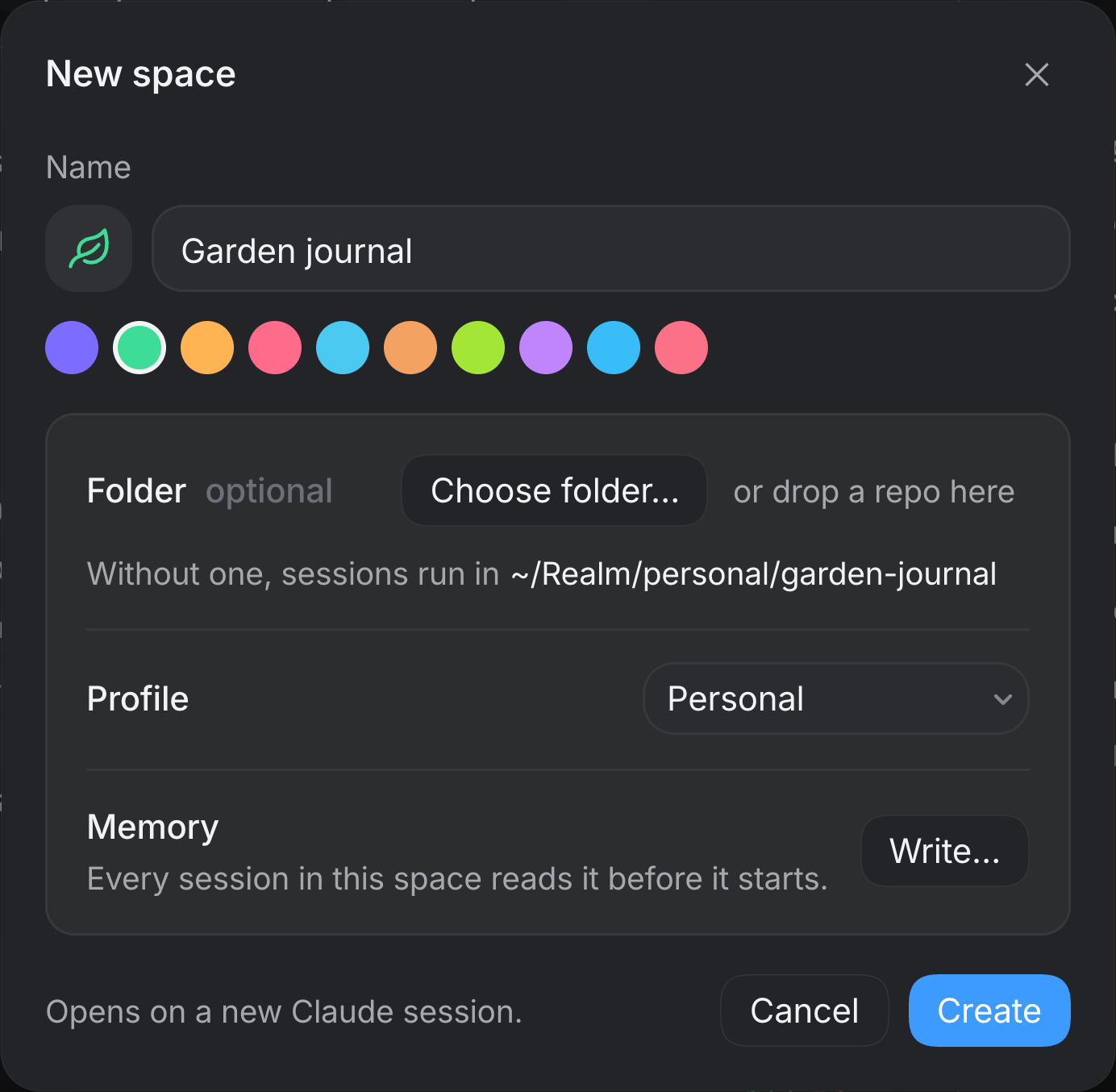
- Press New space at the foot of the sidebar, or choose New space… in the palette.
- Give it a Name, and an icon and colour if you like.
- Under Folder, press Choose folder… or drop a repository onto it. Leave it empty and sessions run in the folder the sheet names.
- Pick the Profile it belongs to. Memory ▸ Write… lets you give it standing instructions straight away, such as "Use pnpm. Never push to main."
- Press Create. The space opens on a new session, ready to type in.
The space menu
Right-click a space's header in the sidebar, or press its ⋯, for:
- New session in a worktree… (in a git repository)
- Show in Finder
- Connections and Memory
- Worktrees (in a git repository)
- Team, or Make this a team…
- Archived sessions
- Space settings
Profiles
A profile is a set of spaces with its own browser sign-ins, saved passwords and passkeys. Nothing of one profile reaches another unless you share it, which makes profiles the way to keep work and personal accounts apart. Realm starts you with one called Personal.
- Switch profile from its name at the top of the sidebar. The same menu has Open <name> in a new window, All spaces…, Profile settings… and New profile….
- ⌘1 to ⌘9 go to the first nine spaces of the profile you're in. ⌃Tab and ⌃⇧Tab go to the next and previous space.
- ⌘⇧Space shows every space at once.
The sidebar
- Needs you heads the sidebar whenever something is waiting on you: sessions waiting on a permission or a question, reviews from a team, and sessions that failed, from every space and every profile. Answer here opens a request in place.
- Pinned holds the sessions you've pinned, from any space, each led by its space's icon in the space's colour.
- Each space lists its sessions with what needs you first, then what's running, then the most recent. A session you haven't seen since it changed has a bold title and a blue dot.
- Right-click a session for Pin, Archive, Rename, Checkpoints…, Move to space… and Delete.
- Spaces stay in the order you drag them into. Turn on Settings ▸ General ▸ Sort spaces by activity to keep the most recently active at the top instead.
Splits and the side panel
The middle of the window holds one session or several side by side. A split holds as many panes as there's room for; when there isn't room, Realm says so rather than squeezing one too narrow to use.
| Keys | What they do |
|---|---|
| ⌘\ | Split right, with a new session |
| ⌘⇧\ | Split down, with a new session |
| ⌘⌥← ⌘⌥→ ⌘⌥↑ ⌘⌥↓ | Move to the pane in that direction |
| ⌘⇧F | Focus the pane full-screen, and back |
| ⌘W | Close the tab or split you're in. It never closes a session on its own, or the window. |
The side panel is the column of tabs on the right. It belongs to the window rather than to one pane, and it holds what a session works with. Its + opens New tab ⌘⇧B, Documents, Terminal, Agents, Simulator and Machine. A new tab is a browser tab: an address bar over Realm's tools and the pages you visited recently. What an agent opens for you arrives as a tab here too.
Worktrees
In a git repository, a session can work in a worktree of its own: a separate checkout on its own branch. Two agents changing code at the same time each get a worktree, and neither overwrites the other's files. Realm keeps worktrees under ~/Realm/worktrees/, in a folder for each space, outside your repository, so they never show in its git status.
Start a session in a worktree
- From the space menu, New session in a worktree….
- Before your first message, from the checkout chip under the prompter, which lists the space's checkouts and New worktree…. A session's checkout can't change once it has sent a message.
- From the palette, New session in a worktree or New worktree….
The New worktree sheet asks for a Name and what to Start from: the branch to base it on, with the one checked out now marked. It makes a branch called realm/<name> from that base and opens a new session in it.
The Worktrees tab
A space's Worktrees tab lists every checkout it has, the space's own folder first. Each one shows its kind (Space folder, Linked checkout or Worktree), its branch, how many files have changed, how far it's ahead of or behind its upstream, when it was last active, how many sessions use it, and its path. Changes opens its diff. New worktree… at the top makes another.
Remove a worktree
Remove… on a worktree asks Remove this worktree? and says exactly what would be lost, such as "2 uncommitted files and 1 unpushed commit", or that nothing is unsaved.
- Also delete the branch starts ticked only when every commit on the branch is pushed. Untick it and the branch stays, with its commits.
- A session still running there blocks the removal until you stop it. Sessions in the worktree go with it, once you tick Delete this session and its transcript too.
- Realm only removes checkouts it made itself.
Bring in your history from other agents
Settings ▸ Import reads what Claude Code, Codex and Cursor already have on your Mac (transcripts, memory and skills) and lets you choose what to bring into Realm. It reads ~/.claude, ~/.codex and ~/.cursor, and skills from ~/.agents and ~/.gemini, and never writes to any of them. Nothing is created until you press the Import button, which says what it will bring in. Sessions it can't match to a space go to an Imported space in your profile.